Apple Maps Place Card
Understanding Apple Maps Place Card
An Apple Maps place card is the digital representation of every brand on Maps and across Apple. Apple Maps place cards enable brands to present accurate, engaging content that builds trust and confidence with users through a visual, interactive experience accessible from anywhere.
Apple Maps place cards are viewed billions of times monthly. Users visit them to learn about offerings, view photos and ratings, and take actions like ordering takeout or reserving a table. Beyond essential information like name, address, hours, and phone numbers, place cards display rich content including photos, showcases, and other details that create a comprehensive user experience.
The images below show the key components of an Apple Maps place card.
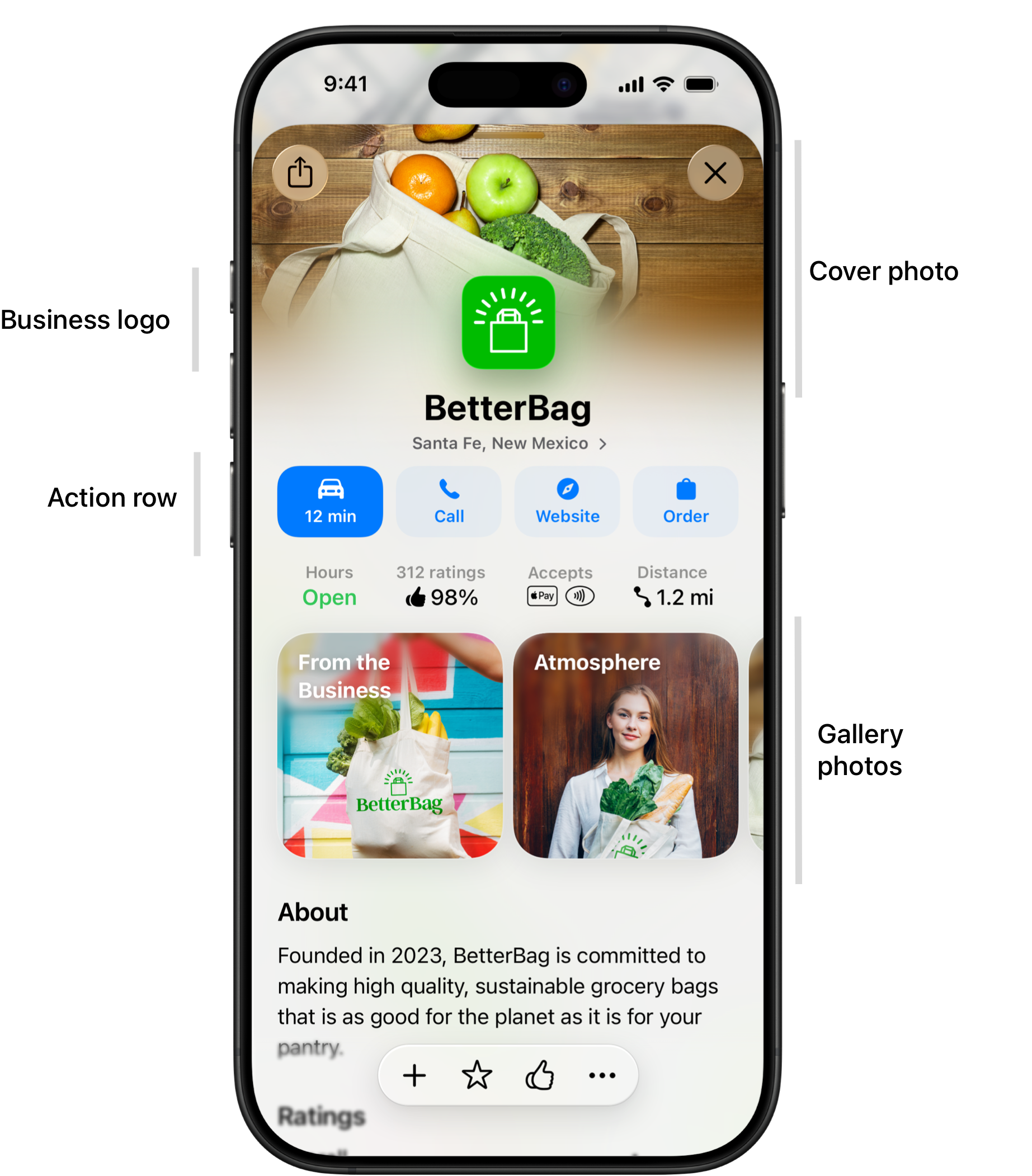
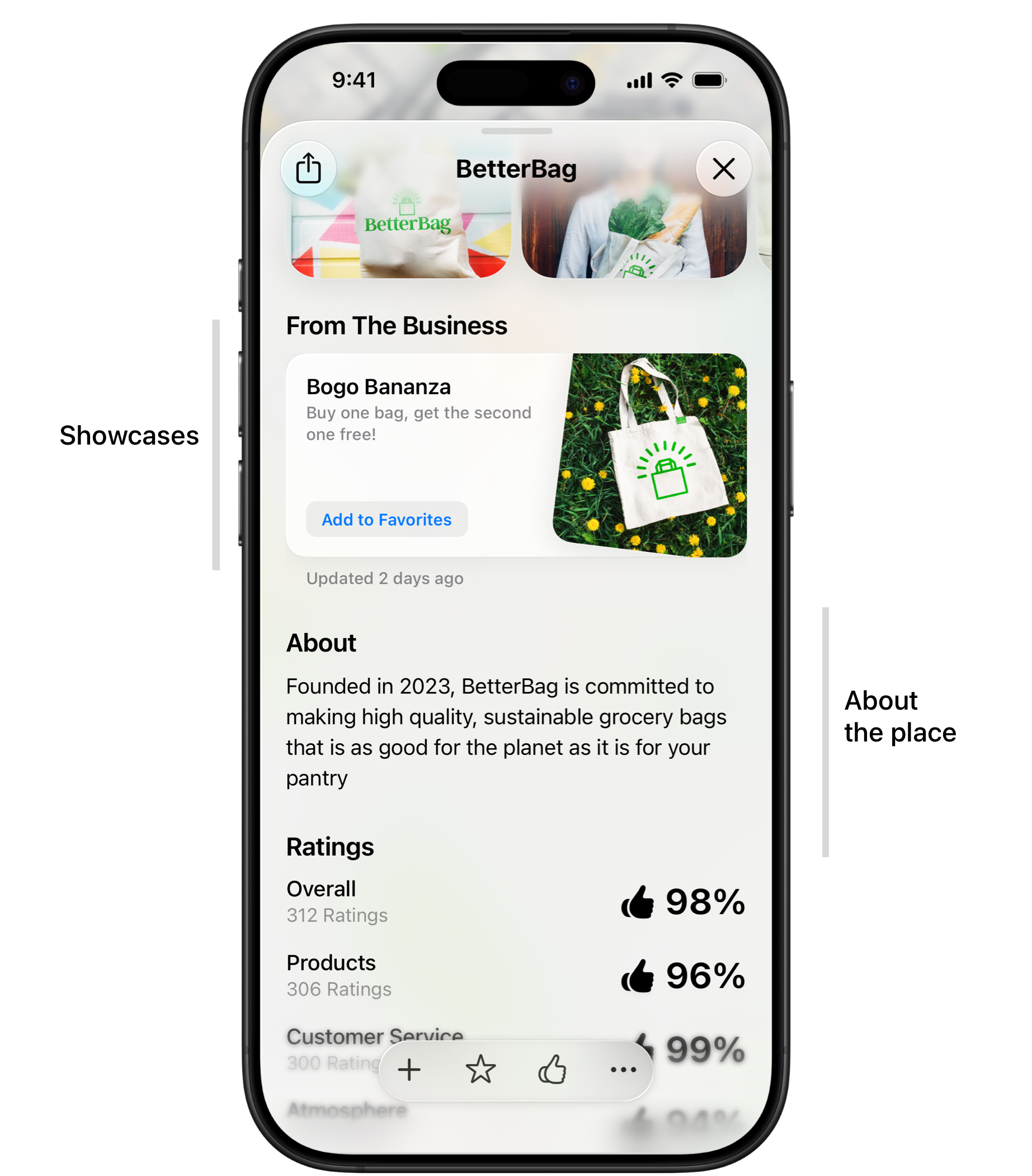
Several place card features require Share Access before partners can manage them on behalf of client organizations. Features requiring Share Access include:
- Cover photo and logo — Brand identity assets
- Flexible action links — Website-based action buttons
- Showcases — Promotional offers and highlights
Partners must obtain Share Access through either Delegation or OAuth app before managing these features.
Cover Photo and Logo
Great cover photos and attractive gallery photos drive user engagement and keep users informed. Photos are the best way to attract customers and engage users.
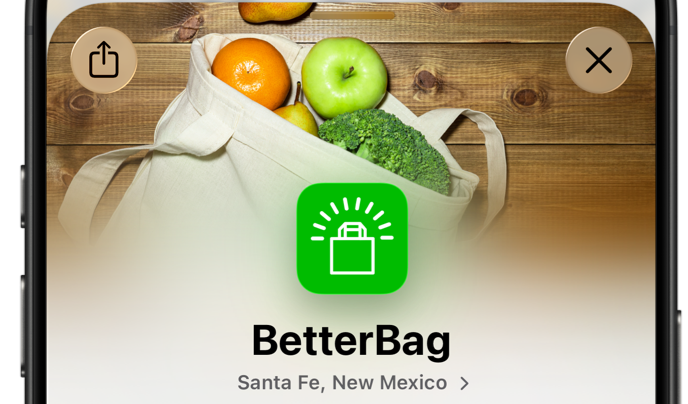
A cover photo and logo personalize the place card and appear at the top. They display as a set—both must be provided.
See the Apple Business User Guide > Photo and text standards and guidelines for design specifications, safety and authenticity requirements, and best practices.
Brands can provide a cover photo at the brand entity level or for a specific location. Location cover photos take precedence over brand cover photos.
- Business API > Resource Definitions > brandAssetDetails > Cover Photo at brand entity level
- Business API > Resource Definitions > assetDetails > Cover Photo intent at location level
Action Links
Action links are buttons in the actions row, starting in the fourth position after the default buttons: directions, call, and website.

Action links let users perform actions like ordering food or viewing a menu. They invoke associated apps or websites provided by partners or business owners.
A location can have multiple action links. The fourth button position is the preferred call to action. In the Better Bag example, Order is the preferred action. Additional actions appear under the More button.
When multiple providers offer the same action (e.g., ride share or travel booking), all options appear in a dropdown under the More button. See Business API > Location > Order CTA Providers to set the menu order.
There are three types of action links: quicklinks, flexible action links, and App Clips.
Requirements for all action link types:
- Must comply with Apple Business custom link privacy—no tracking information. See Apple Business User Guide > Create Third-Party Partner Action Links in Apple Business > Privacy.
- UTM codes are permitted only on flexible action links. See UTM Parameters for Flexible Action Links
- UTM codes are not allowed for web links, action links, or punch-out links except as defined in an agreement between Apple and the partner.
Quicklinks
A quicklink is a universal link deep linked to an app or website belonging to a brand or pre-approved partner.
Quicklinks open the associated app at a defined location where users can perform an action:
- Include the location ID to redirect users to the intended app view or website page.
- When the app isn't installed, quicklinks redirect to a brand website. For example http://www.betterbags.com/store-locator/store/13453.
See Business API > Location > Optional Properties > Action Link Details.
Requirements:
- Apps must be available in the Apple App Store. Apps not in the App Store cannot use universal links in quicklinks.
- Multiple quicklinks can be provided per location, but only one can be the preferred call to action. See Business API > Resources Definitions > locationDetails > Call-To-Action.
For more on universal links, see Apple Developer > Allowing apps and websites to link to your content.
Flexible Action Links
Flexible Action Links (FAL) work like quicklinks but don't require an iOS app—they deep link to the business owner's website instead. See Business API > Resource Definitions > locationDetails > Quicklinks Without App Store URL (Flexible Action Links).
Flexible action links are set up per location and displayed in the action row. When users tap an action button (For example, order food, reserve a room, and so on), they're taken to the business owner's website to complete that action.
See Flexible Action Links for implementation details.
Requirements:
- Partners use the API; business owners use the portal.
- Multiple flexible action links per location are allowed, but only one per action type.
- All links must be valid and relevant to the location's category.
- If brand logos are submitted, the action link displays with that branding; otherwise, the Safari logo is used.
UTM Parameters for Flexible Action Links
Flexible action links support UTM parameters for identifying traffic sources and campaign metrics. UTM parameters let businesses track their Apple Maps presence effectiveness by providing referral and interaction data for website analytics.
Supported parameters: utm_source, utm_medium, utm_campaign, utm_term, and utm_content.
For example, a business could use utm_source=apple_maps and utm_campaign=summer_promotion to track visitors from a specific campaign.
All UTM parameters must comply with Apple's privacy guidelines, which prohibit tokens, GCLID parameters, lead generation phone numbers, login trackers, and other identifiers that could compromise user privacy.
App Clips
App Clips open linked apps quickly for small tasks.
App Clips are not yet available through the Business API.
For more information, see:
- Apple Developer > App Clips
- Apple Developer > App Store Connect API > App Clips and App Clip Experiences
Gallery Photos
Attractive, varied gallery photos drive engagement, inform users about what to expect, and add personality to the brand. Photo contribution is key to discovery and customer engagement—photos drive the highest level of user engagement.
Gallery photos appear under the action row on the place card.
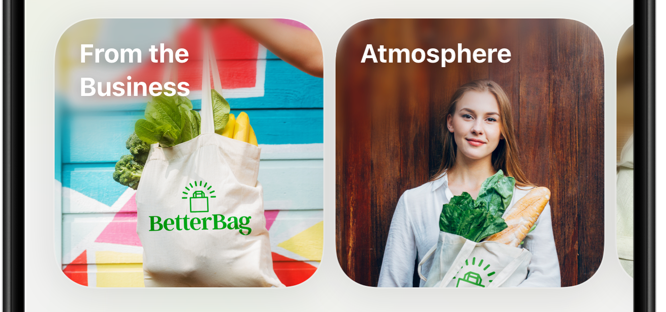
Tapping a photo expands it to full screen. Apple automatically organizes photos into albums when sufficient photos of a type exist. Supported album types include Atmosphere, Exterior, Food & Drink, Menu, and more. Best practice: provide several photos for each album type.
For more information:
- Apple Business User Guide > Photo and text standards and guidelines
- Business API > Resource Definitions > assetDetails > Gallery Photo intent
Showcases
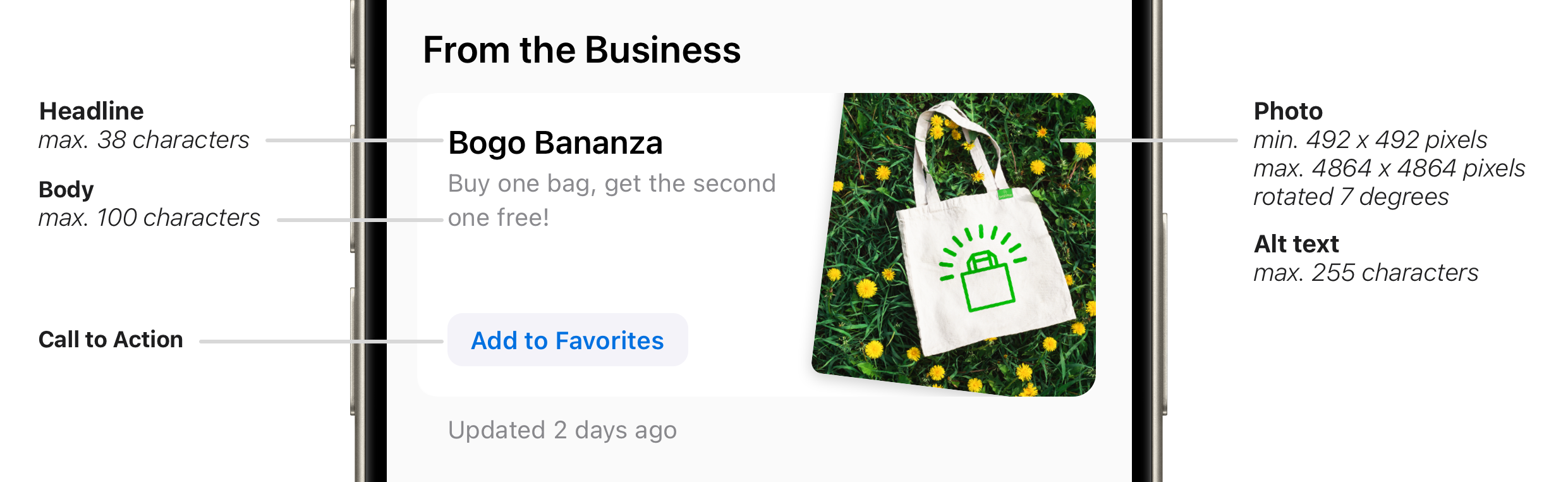
A showcase is a place card module that lets brands highlight offers, promotions, events, or new products and services.
A showcase contains a headline, body text, a photo, and a call to action button linking to the specific offer. See Business API > Resource Definitions > showcaseCreativeDetails.
The showcase CTA can be any action allowed in the action row, including default actions (call, website, directions) or action links. Available CTAs are limited to those that make sense for the location—for example, an auto brand location can't use "Get Tickets" or "See Showtimes."
See Business API > Resources Definitions > showcaseCreativeDetails > Call-to-Action.
Scheduling
- Multiple showcases can be set up in advance; only one can be active per location.
- Duration: 1 to 365 calendar days
- Runs in 24-hour increments starting at midnight (12:00 a.m. to 11:59 p.m.)
- Schedule at least 3 business days before the start date to allow for Apple review.
- Can be deactivated anytime (e.g., if an item runs low)
See Business API > Resource Definitions > showcaseDetails.
Conditions
- Showcase CTA must align with the brand category.
- Ensure the showcase image displays well with Apple's required 7-degree tilt and crop size.
- Showcases are supported in 38 countries. See Country and Territory Constraints.
About
The "About" description is a free text area for organizations to share what makes their location special. Descriptions can be set up in different languages to match the device language.
See Business API > Resource Definitions > locationDetails > Location Descriptions.
Good to Know
"Good to Know" lists amenities and services available at the location.
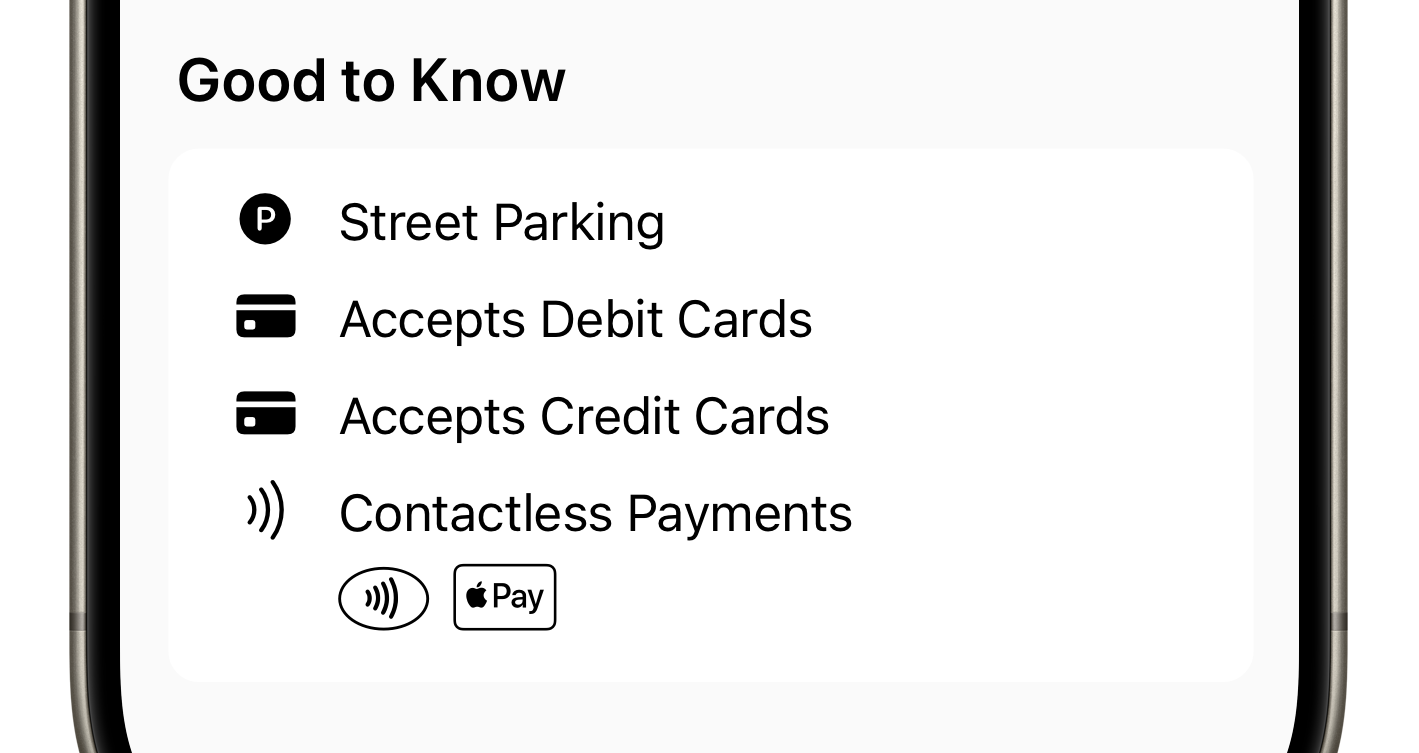
Attributes are provided by both partners and other Apple data providers.
See Business API > Resource Definitions > locationDetails > Location Attributes.
Service Hours
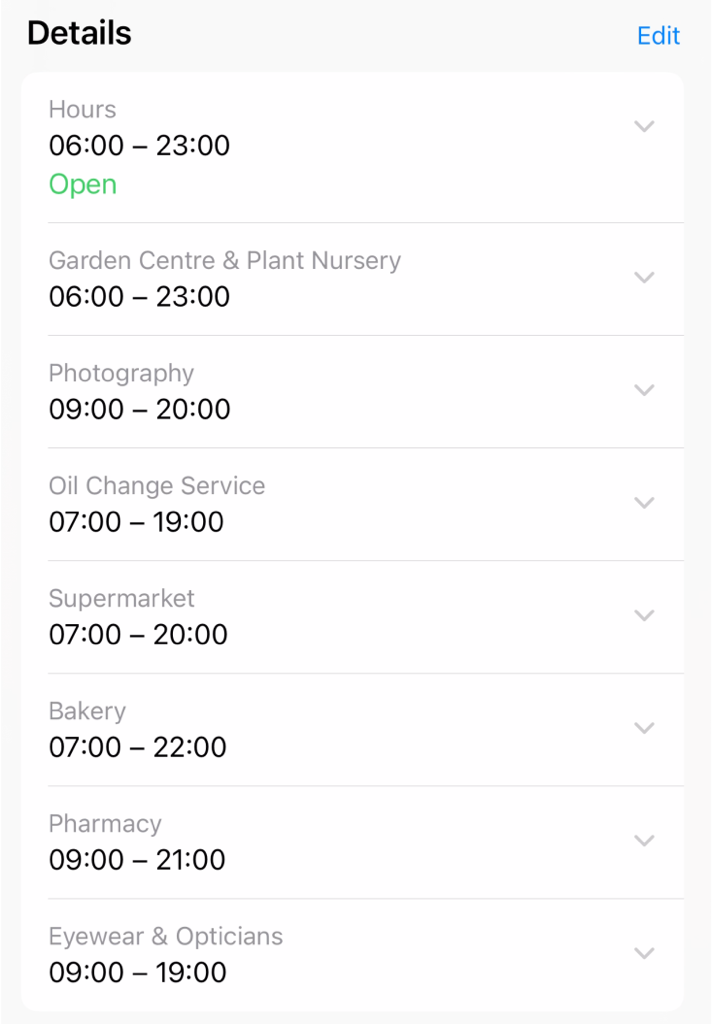
Service hours show when specific services or departments are open. For example, a large store might have different hours for bakery, pharmacy, and garden center, allowing customers to view each department's schedule.
Service hours appear below Good to Know on the place card.
See Business API > Resource Definitions > locationDetails > Service Hours.
Special Hours
Special hours temporarily adjust regular hours for holidays or seasonal changes. Schedule at least 5 business days in advance.
For example, to schedule holiday hours for August 10–September 30, submit specialHours by August 5.
See Business API > Resource Definitions > locationDetails > Special Hours.