OAuth app
Overview
The OAuth app is the recommended Share Access method that allows organizations to authorize partners to manage their brand and location data in Apple Business.
For a comparison between OAuth app and Delegation Share Access methods, see Share Access.
The OAuth app authorization workflow requires action by the partner and their client organization on both the partner website and Apple Business portal. See OAuth app Authorization Steps.
Terms
OAuth 2.0 is a protocol that "...enables a third-party application to obtain limited access to an HTTP service, either on behalf of a resource owner by orchestrating an approval interaction between the resource owner and the HTTP service, or by allowing the third-party application to obtain access on its own behalf."
OAuth app is a system that facilitates the authorization code flow ("three-legged OAuth"). This system supports the generation of an authorization code which is subsequently passed into a request for an access token using the authorization_code grant type.
The term "OAuth app" is used in Apple Business to disambiguate it from a Service Account.
Service Account is a system that facilitates access to resources when signed requests for resources are received ("two-legged OAuth"). This system implements the client_credentials grant type.
OAuth app Authorization Steps
The OAuth app authorization workflow sets up trust between Apple, the partner, and an organization.

Share Access Workflow with OAuth app
Partner must have production API access.
An OAuth app on Apple Business requests authorization for partners to read or modify data in an organization's Apple Business account.
Step 1. Partner Adds OAuth Support
-
Partner Registers OAuth app on Apple Business portal.
Step 2. Organization Connects the Partner through OAuth app. Organization links their Apple Business account to their account on the partner platform.
- Organization Initiates Connection. On the partner platform, the organization signs in and selects the Link Apple Business Account button.
- Organization Allows Connection. On Apple Business, the organization selects Approved.
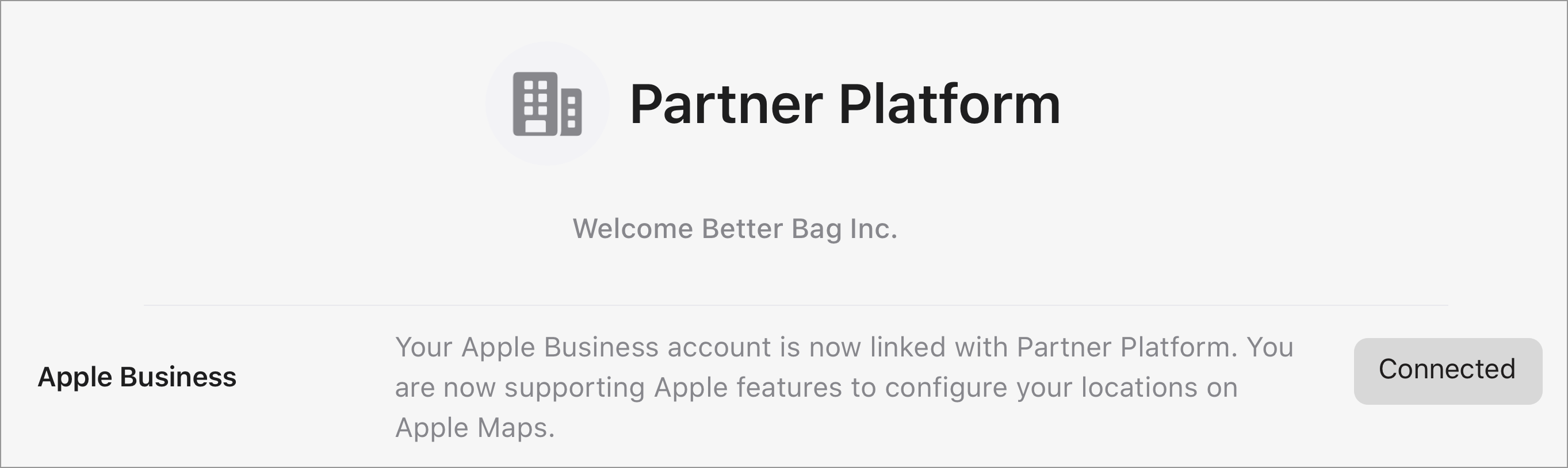
- Organization Confirms the Connection.
Step 3. Partner Accesses Organization Data. Partner receives authorization to manage an organization's Apple Business account. Partners can then manage the organization's brands and locations.
Step 4. Partner Sends Organization Data to Production. Partner opens a session on their platform. Retrieves current tokens using Request Refresh Token. Manages organization data using Business API.
Step 1. Partner Adds OAuth Support
Partners build an infrastructure on their own platform following their security and infrastructure rules to support the OAuth app they register with Apple Business.
Partner Tests OAuth app
Partners can test OAuth app functionality during the onboarding process. To enable OAuth app testing during onboarding, contact Apple Business support and provide:
- Specify which environment(s) you need for testing (AIE and/or DQE)
- Your
redirect_urifor the OAuth app (multiple URIs are possible; onlyhttpswith valid signature is allowed)
Apple Business will provide test organizations for OAuth app testing in both environments.
Important: Testing during onboarding is different from production activation. See Prerequisites for Share Access for production requirements.
Partner Platform Developer Requirements
The partner must provide their developers with access to Apple Business portal so they can test the organization created. The developers must:
- Be an Apple Business account Team Member before setting up the OAuth app on Apple Business portal.
- Use credentials created for their Apple Business login to test the organization's OAuth app.
Contact Apple Business support for details on partner developer access.
Partner Registers their OAuth app
The following diagram shows the OAuth app authorization sequence and interaction between the organization, partner, and Apple Business, when an organization wants a partner to manage its current and future brands and locations through the partner's platform.
Add OAuth app to Apple Business
After the partner has completed testing and integrating OAuth app with their platform, they can deploy it to production. Only partners that have production API access to Apple Business and users with administrator role may add an OAuth app in production.
See the Apple Business User Guide > Add OAuth apps to Apple Business.
When creating OAuth app the partner provides the OAuth app name and the redirect_uri. This redirect_uri:
- MUST NOT include a fragment
- MUST NOT include a user information
- MUST NOT resolve to a localhost
- MUST be HTTPS with proper domain certification
- MUST be a complete redirect, not a pattern
OAuth app returns the client_id and client_secret when the OAuth app is created. Save the client_secret somewhere secure it is displayed only this once.
Securely store the OAuth app client_secret.
Partner Builds Authorization Flow
Setup Requirements
- Add an OAuth app on Apple Business
- Set up a web service to run the authorization code flow
Implementation
Add a Link Apple Business Account button on your platform that invokes the Business API > OAuth apps > Request Authorization Code call.
Partner Invites Organization to Partner Platform
Guide the organization to:
- Create an account on Apple Business
- Log into your partner domain
Contact Apple Business Brand Support for portal-related issues.
Step 2. Organization Connects the Partner through OAuth app
To start the OAuth app authorization code flow, the organization initiates and authorizes the partner connection to Apple Business.
Organization Initiates Connection
-
Partner directs the organization user to the partner authorization URL.
-
On the partner platform, the organization user signs in with administrator privileges. The user selects the Link Apple Business Account feature to link the partner account to their Apple Business account. This authorizes the partner account to access their Apple Business account.
The feature:
- Redirects the user to Apple Business for authorization.
- Invokes the Business API > OAuth apps > Request Authorization Code call.
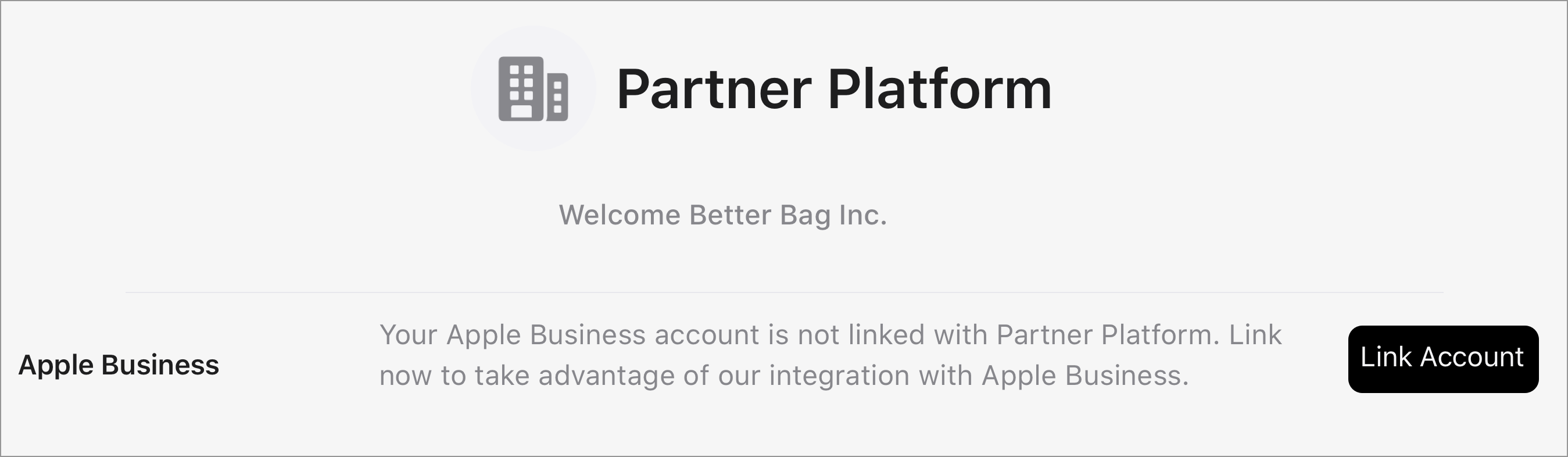
Organization Allows Connection
- To proceed with the linking the partner and Apple Business accounts, the user signs into their Apple Business account.
- If a list of approved organizations is displayed, select the organization to link to the partner.
- If the user does not have an Apple Business organization, then they are provided a link to register with Apple Business before they can approve the OAuth app. See Apple Business User Guide > Sign up for Apple Business.
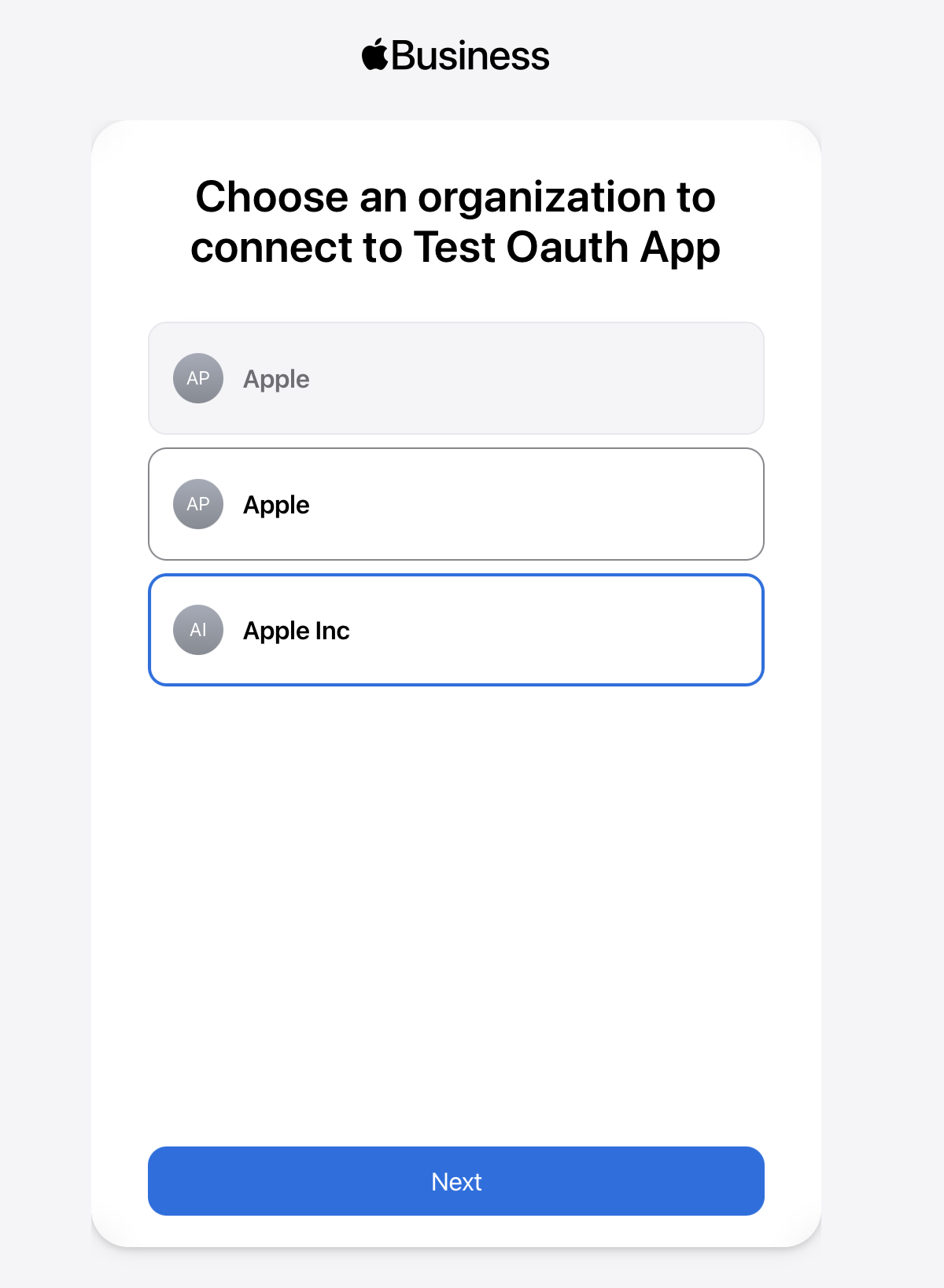
- On Apple Business, the organization authorizes the partner's OAuth app connection. In the OAuth app authorization panel, click Allow.
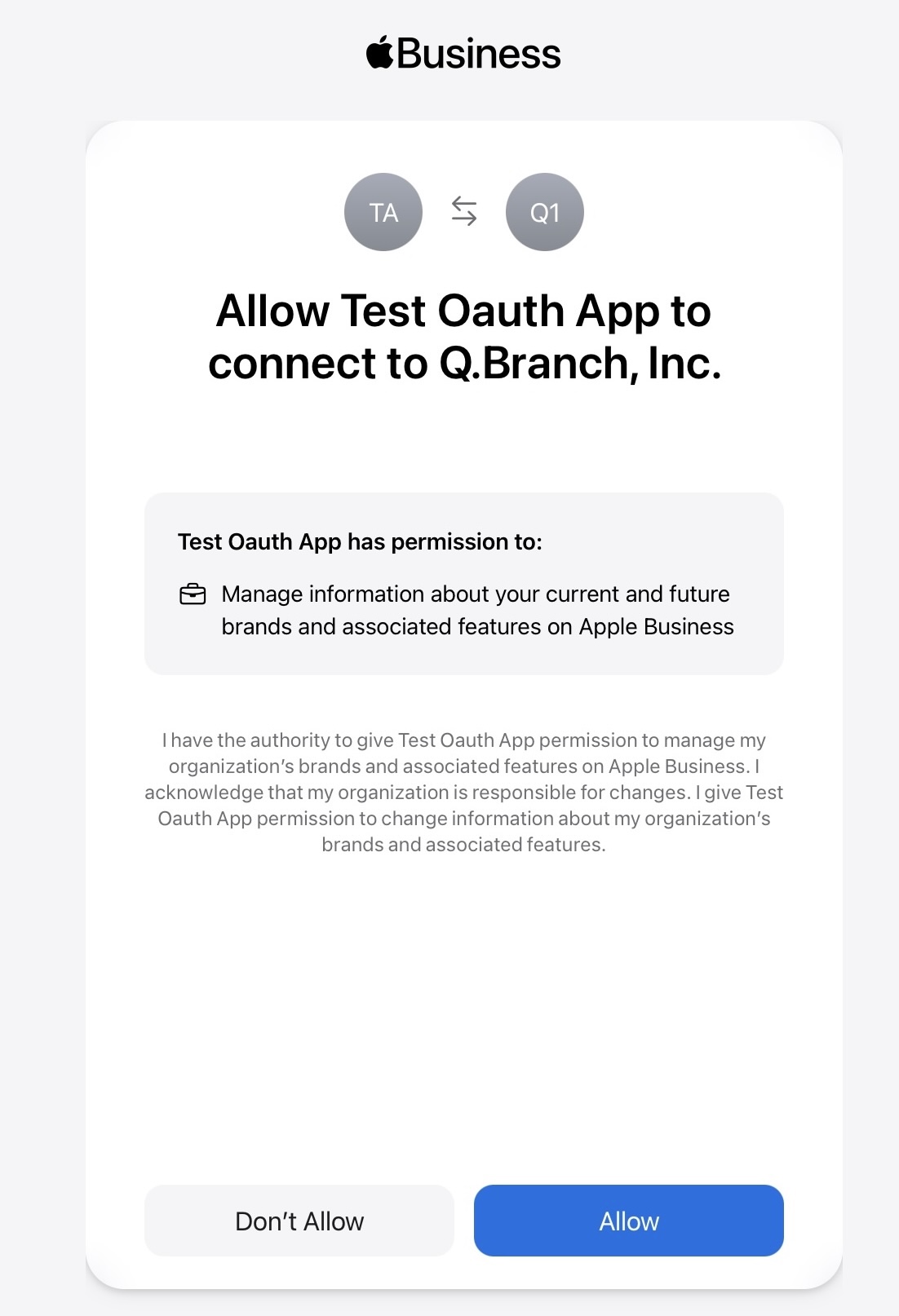
Apple Business:
- Redirects the organization to the
redirect_urispecified when the OAuth app was created. This is the partner user interface. - The organization redirect content includes a
codeandstate.
The partner platform:
-
Confirms the
statereceived to prevent Cross-Site Request Forgery (CSRF) attacks.importantPartner creates a unique
statevalue for each organization request. This prevents Cross-Site Request Forgery (CSRF) attacks. DO NOT use a static value in production. -
If there is an error or if the organization cancels the flow, the
redirect_urireceives an error on the URL parameter.
See Business API > OAuth apps > Errors for list of possible error codes.
Organization Confirms the Connection
After redirect to the redirect_uri, verify the connection:
- Confirm the
statevalue matches the original request. - Extract the
codeparameter for the next step. - If an error occurs, check the
error_descriptionparameter. See Business API > OAuth apps > Errors.
All scopes are granted upon authorization. See Business API > OAuth apps > Scopes.
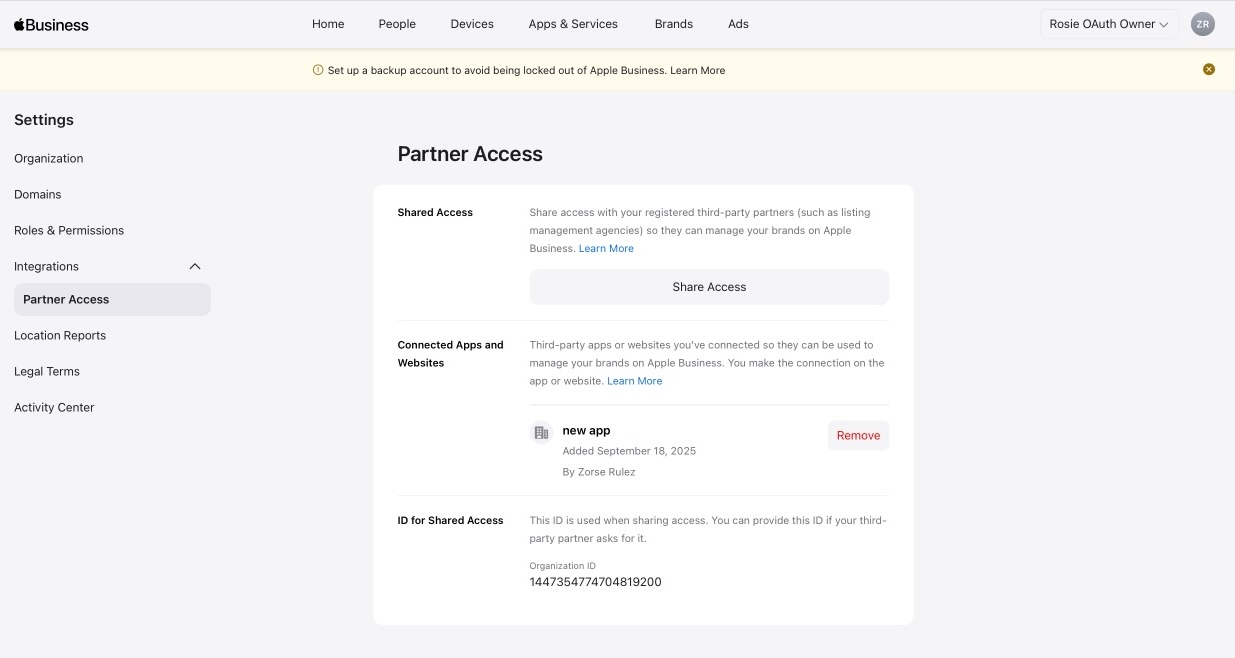
Step 3. Partner Accesses the Organization Data
On the partner platform, the partner uses Business API with all redirects and verifications between the partner website and Apple Business, to:
Request Access Token
The partner invokes a Request Token call to receive an access token.
- Receive authorization
codefrom Apple Business.
This code is returned by Apple Business in response to the Business API > OAuth apps > Request Authorization Code call that is issued when the organization selects the Link Apple Business Account button to start the link workflow. See Organization Connects the Partner through OAuth app.
- Request an
access_tokenwithin 5 minutes of receipt of the authorizationcodefrom Apple Business.
See Business API > OAuth apps > Request Token.
The code is good for one time use only and it expires after 5 minutes.
- Receive the
access_tokenandrefresh_token.
The partner now has a 60 minute session with permission to manage the organization's data in Apple Business.
After the partner receives the access token:
- The Link Apple Business Account button on the partner's platform should change to Linked or Connected.
- The partner should inform the organization that they are connected to the partner platform and that the partner is connected to the organization's Apple Business data.
- Save the
refresh_token. This allows the partner to request a newaccess_tokenwhen it expires.
Get User & Organization Details
The partner retrieves details of the organization and contact person that granted you access. The partner will need this information for exercising the API.
See Business API > OAuth apps > Get User & Organization Details.
Request Refresh Token
An access_token grants the partner access to the organization’s data for 60 minutes. Whenever the partner session times out, use the most recent refresh_token to request a new access_token.
To request a refresh_token, see Business API > OAuth apps > Request Token (Refresh).
Token Management
Managing tokens correctly requires handling errors and changes.
Organization Re-Authorizes OAuth
Sometimes an organization might re-authorize the OAuth app. This generates a new access token and invalidates the previous access token.
Best practice:
- Partners always update their system to retrieve the latest access token.
- Partners disable the OAuth authorization link on their site after they have a valid access token. This prevents organizations from accidentally re-authorizing the partner's OAuth app.
Error Handling
If a partner Business API call using an access token, returns an error, take the action listed for the HTTP status codes.
| 400, 401 | Error: invalid_grant | Action: |
|---|
- Use the Business API > OAuth apps > Get User & Organization Details API to validate the access token (or refresh token).
- If the access token shows invalid try to retrieve a new one with the refresh token.
If the refresh token is invalid this means the authorization has been revoked. Please contact the organization to re-authorize your OAuth app.
| 200 | Error: null response | Action: |
|---|
Step 4. Partner Sends Organization Data to Production
Send brand and location data using OAuth tokens from Request Access Token and Request Refresh Token. See Send Data with Share Access.
Workflow
- Open a session to access the organization's Apple Business data.
- Use Request Token (Refresh) to extend sessions as needed.
- Manage organization data using the Business API.
For FAQs and best practices, see Share Access.